

What is the best Google Maps extractor?
The best Google Maps extractor depends on three things: how you pay (a flat licence versus per-record fees), where your data lives (your own PC versus a vendor’s cloud), and how much you extract. For high-volume, cost-predictable and private extraction, a desktop tool like Google Maps Contact Extractor is usually the best value; for cloud automation and developer pipelines, a hosted API such as Apify or Outscraper can be the better fit.

Google Maps Contact Extractor
Short answer: if you want to pay once and extract unlimited business data that stays on your computer, choose a desktop extractor. If you need cloud scheduling or an API to plug into other software, choose a cloud scraper and budget for per-record pricing.
Desktop vs cloud at a glance
| Tool | Type | Pricing | Data location | Best for |
|---|---|---|---|---|
| Google Maps Contact Extractor | Windows desktop | Flat licence ($79.95–$154.95) | Your PC | Volume, flat cost, privacy |
| Apify | Cloud / API | ~$1.50 / 1,000 | Apify cloud | Developers, automation |
| Outscraper | Cloud / API | ~$1–$3 / 1,000 | Outscraper cloud | No-code cloud pulls |
| gmapsextractor | Cloud + extension | Credit-based | Cloud | Quick browser grabs |
See the full best Google Maps scrapers comparison, or read the head-to-heads: vs Apify, vs Outscraper and vs gmapsextractor.
Features that separate the best extractors
When comparing Google Maps extractors, weigh five things: extraction accuracy, the range of data fields it returns, how well it handles bulk and high volume, the export formats it supports, and its pricing model. A tool that returns only a name and phone number is far less useful than one that also captures website, email, rating, reviews, price level and coordinates — the difference between a raw list and a workable lead database.
Why Google Maps Contact Extractor stands out
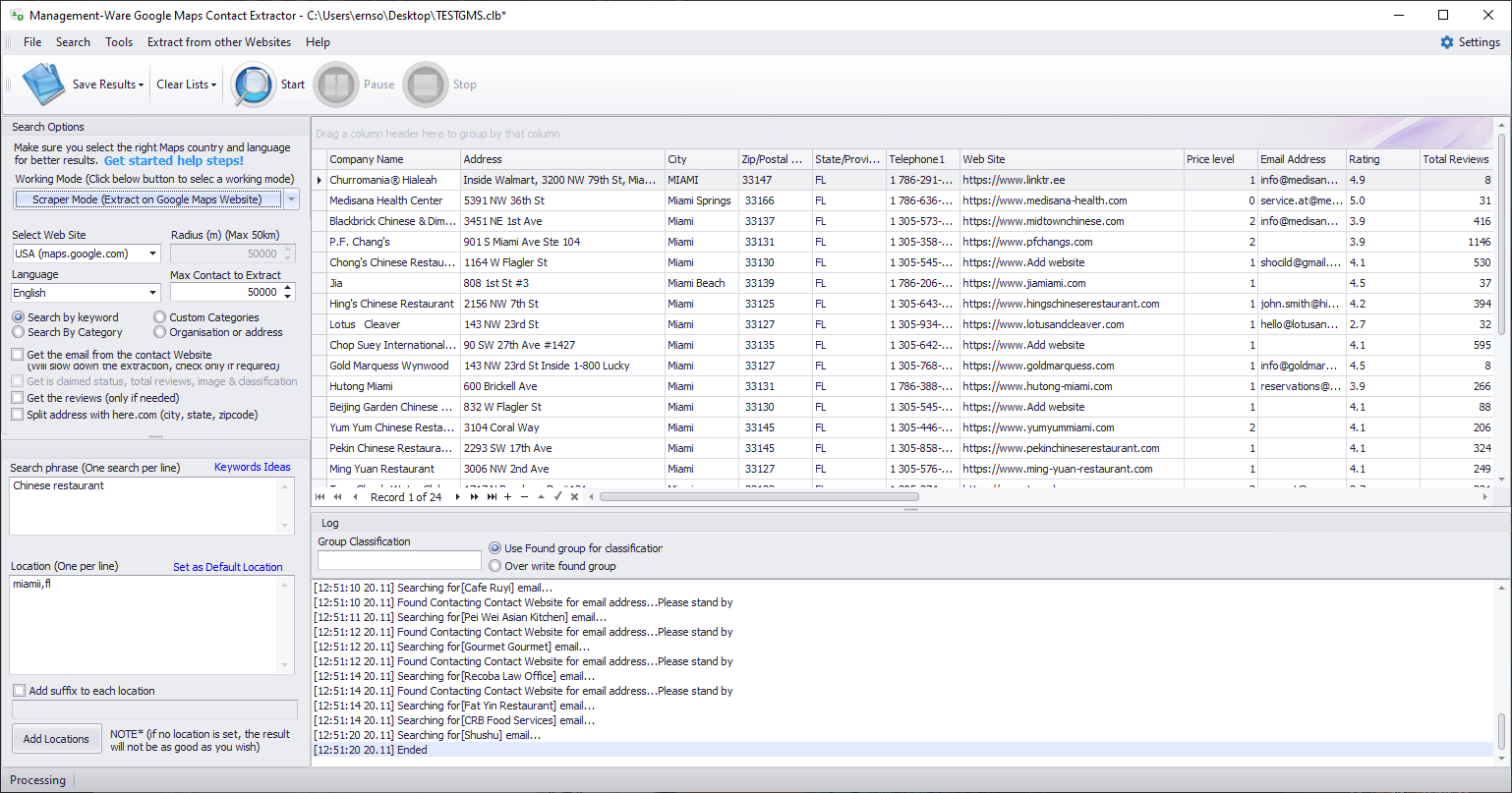
Google Maps Contact Extractor has been developed since 2010 and is built specifically for lead generation. It searches by keyword and location, runs bulk jobs across many cities at once, returns up to 22 fields per business, includes an optional email finder, and exports to CSV, Excel, XML, PDF, HTML and RTF. In scraper mode there is no API key and no record limit, and every result stays on your own PC — a flat licence instead of a per-record meter.
Scraper mode vs Google Maps API
The software offers two modes. Scraper mode collects data directly from Google Maps with no API key and no per-record cost — the simplest option for most users. Google Maps API mode uses Google’s official API, which some users prefer but which is subject to Google’s usage quota and possible charges beyond the free tier. Wondering whether any of this is allowed? See is scraping Google Maps legal?
How to choose
Pick a desktop extractor if you extract regularly or in volume, want a predictable one-time cost, or need your leads to stay off third-party servers. Pick a cloud extractor if you want no installation, occasional small pulls, cloud scheduling, or a developer API for automation. If you are in the first group, see pricing or download the free demo to test it on your own searches.
Frequently Asked Questions
What makes the best Google Maps extractor?
Accurate extraction, the fields you need, predictable pricing (flat versus per-record), and whether your data stays on your own machine.
Should I choose desktop or cloud?
Desktop gives a flat cost and local data; cloud gives no-install convenience and automation.
Share
STAY IN THE LOOP
Subscribe to our free newsletter.
How do I extract business data from Google Maps? To extract business data from Google Maps, use a desktop tool like Google Maps Contact Extractor: enter a keyword and a location, run the extraction, then export the results to CSV or Excel. No coding and no API key are required. Here is the full process,


